🦎 Chameleon (ChameleonUltra)
📌 Compatibility Note
- The Chameleon function of MiixKey is implemented based on the open-source project ChameleonUltra.
- It is basically consistent with the functionality of ChameleonUltra devices and can reuse its ecosystem tools.
⚠️ Strictly Prohibited
Do NOT flash the official Chameleon Ultra firmware onto the NRF chip of MiixKey, as this may cause device damage!
Do NOT flash the official Chameleon Ultra firmware onto the NRF chip of MiixKey, as this may cause device damage!
📱 MiixKey Menu Explanation
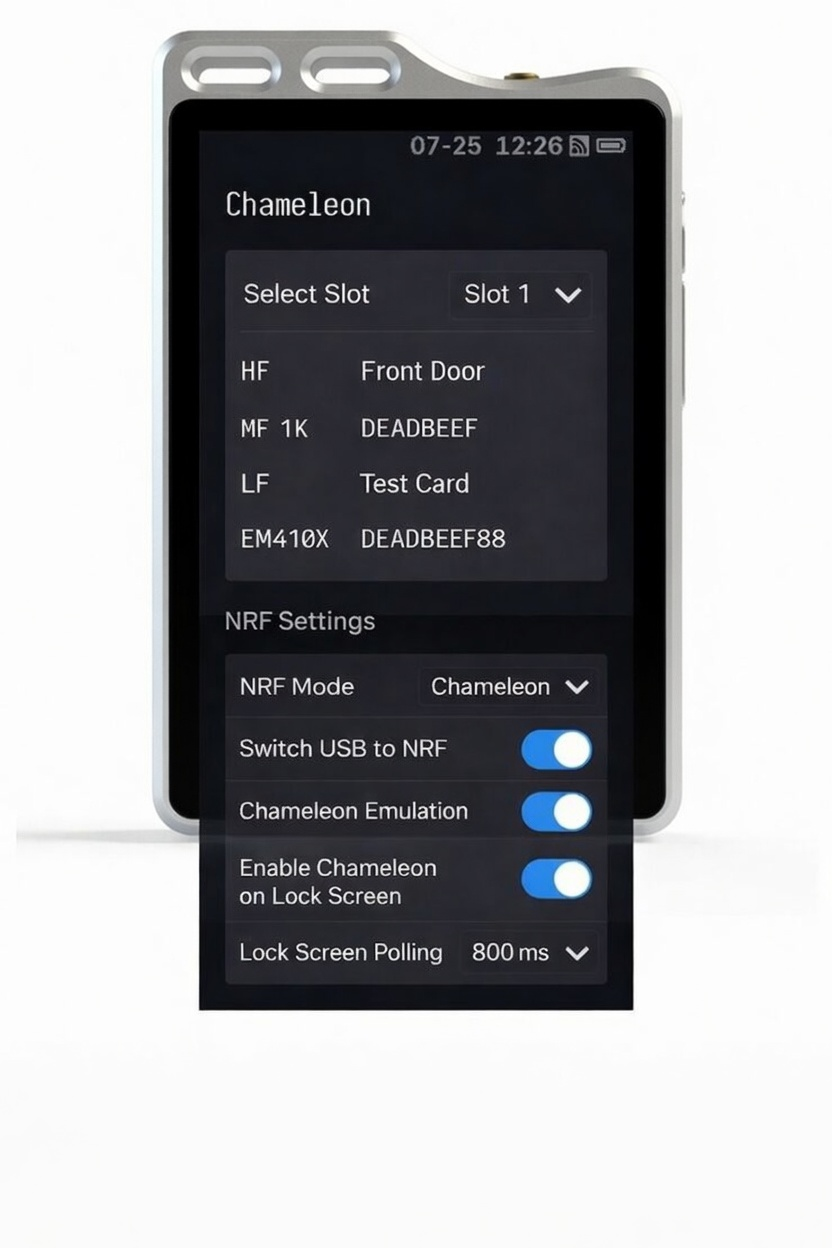
NRF Mode
- Off: Turn off the NRF chip.
- NFC+BT: NFC for FIDO authentication, Bluetooth for keyboard emulation.
- Chameleon: Chameleon mode, use Chameleon-related functions. The mobile APP can connect via Bluetooth.
- BT Pairing: Clear paired devices and force re-pairing mode.
- Upgrade Mode: NRF chip enters upgrade mode.
Switch USB to NRF
After enabling, you can connect to Chameleon via USB.
Chameleon Emulation
Switch the Chameleon working mode to card emulation.
Start Chameleon on Lock Screen
Start the Chameleon function on the lock screen without unlocking.
Lock Screen Polling
Used in conjunction with Start Chameleon on Lock Screen. If polling is enabled, it will automatically switch between all cards according to the set interval.
💻 Client
Recommended cross-platform management tool:
- Supports Windows/macOS/Linux/Android/iOS
- Provides functions such as card management, data editing, firmware update
- Connects to miixkey device via Bluetooth
⬆️ MiixKey NRF Firmware Upgrade (NRF52840)
Important: This tutorial is only for the MiixKey NRF52840 firmware package in
.zip format. Do not install it as MiixKey main firmware, rename it, or extract it before upgrading.
- Download the dedicated MiixKey NRF firmware ZIP package from the NRF Firmware page. Keep the original filename and do not extract the package.
- On MiixKey, set NRF Mode to Chameleon.
- Enable Switch USB to NRF.
- Connect MiixKey to ChameleonUltraGUI.
- Click Settings in the lower-right corner of the client.
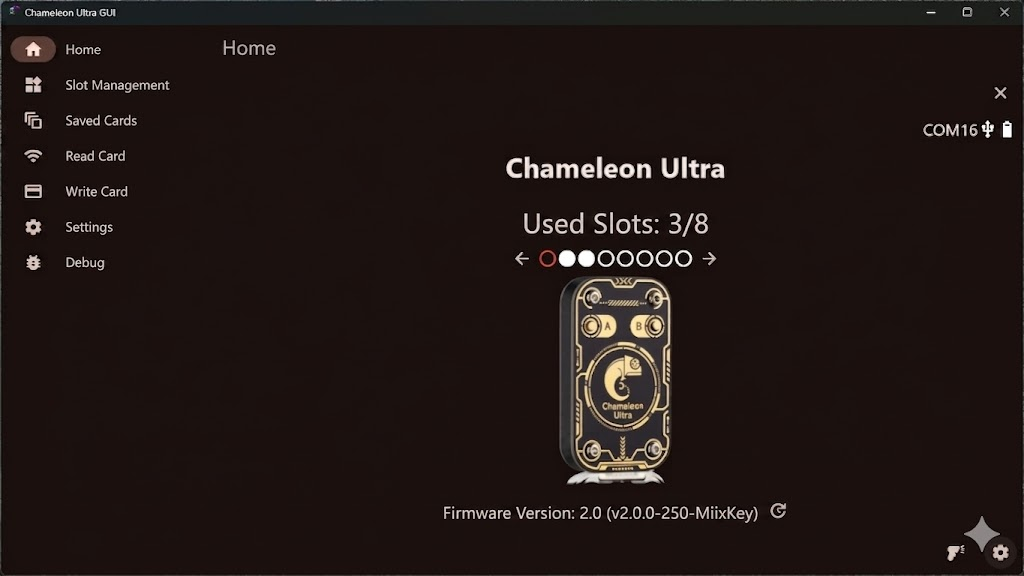
- Select Flash Firmware Package via DFU.
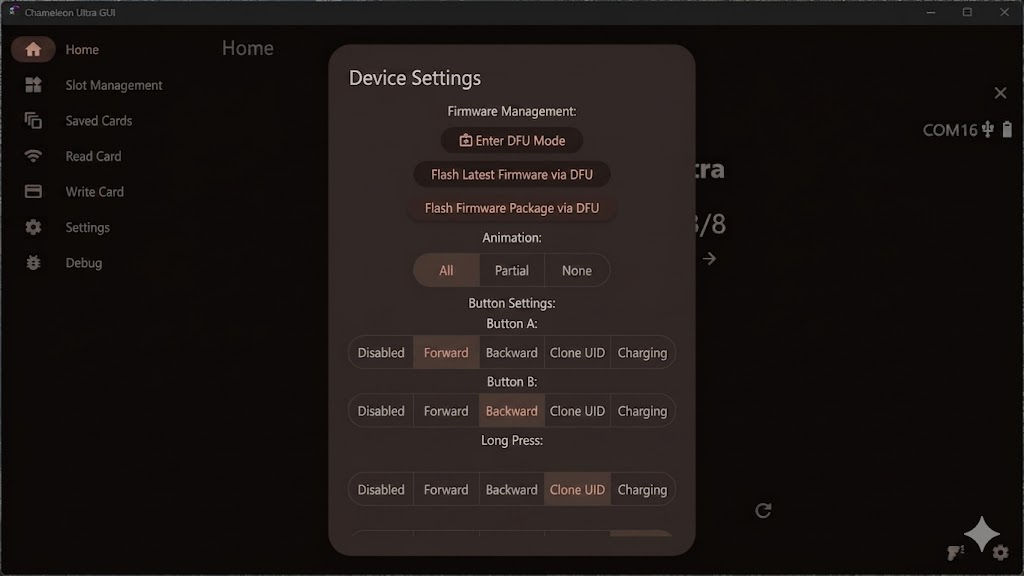
- Select the downloaded MiixKey NRF ZIP package to start the upgrade.
- Keep MiixKey connected and powered during the upgrade. Do not disconnect the device or close the client.
- Wait for the upgrade to finish, then reconnect to confirm the NRF firmware version.