MiixKey Script
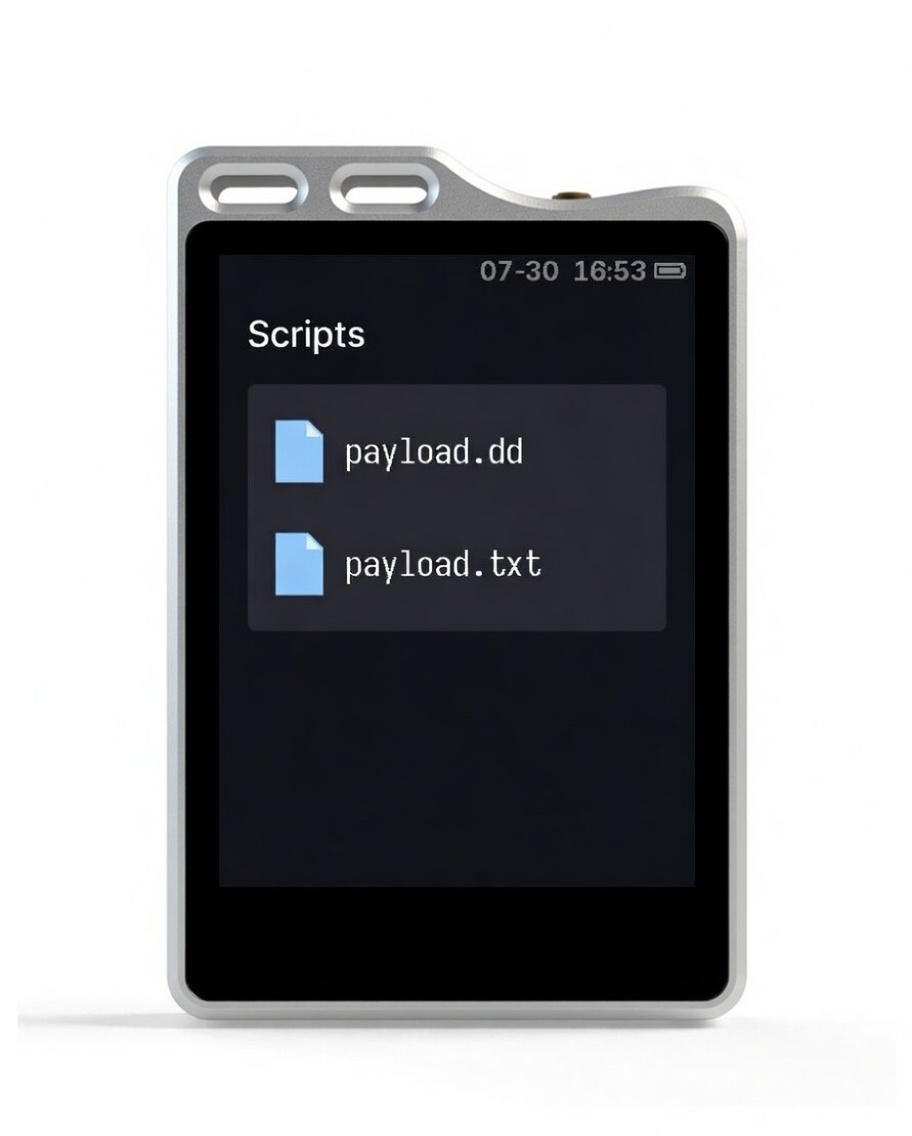
MiixKey Menu Explanation
The script menu provides access to script management features. You can navigate through the menu to select and execute scripts stored on the device.
Basic Commands
REM
Function: Adds a comment, which is ignored during script execution.
Syntax: REM [comment text]
Example:
REM This is an example comment
REM The next line will type a string
DELAY
Function: Sets a delay (in milliseconds).
Syntax: DELAY [milliseconds]
Example:
DELAY 1000  REM Delay for 1 second
DELAY 500   REM Delay for 0.5 seconds
DEFAULT_DELAY / DEFAULTDELAY
Function: Sets the default delay (unit: 10 milliseconds).
Syntax: DEFAULT_DELAY [value] or DEFAULTDELAY [value]
Note: The set value is multiplied by 10 to convert to milliseconds.
Example:
DEFAULT_DELAY 100 REM Set default delay to 1000 milliseconds (1 second)STRING
Function: Types a string.
Syntax: STRING [text content]
Note: Supports ASCII characters; UTF-8 multi-byte characters will be skipped.
Example:
STRING Hello World!ENTER
Function: Simulates pressing the Enter key.
Syntax: ENTER
Example:
STRING username
ENTER
STRINGLN
Function: Types a string and presses Enter.
Syntax: STRINGLN [text content]
Equivalent to: STRING [text content] + ENTER
Example:
STRINGLN password123Special Function Commands
Random Character Generation
MiixKey supports generating random characters for creating passwords or test data.
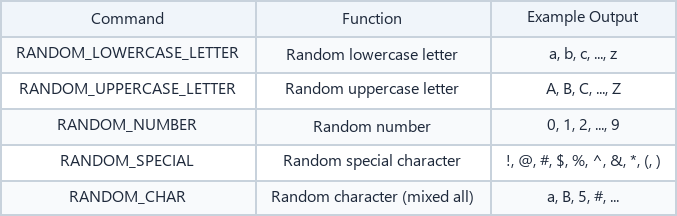
| Command | Function | Example Output |
|---|---|---|
RANDOM_LOWERCASE_LETTER |
Random lowercase letter | a, b, c, ..., z |
RANDOM_UPPERCASE_LETTER |
Random uppercase letter | A, B, C, ..., Z |
RANDOM_NUMBER |
Random number | 0, 1, 2, ..., 9 |
RANDOM_SPECIAL |
Random special character | !, @, #, $, %, ^, &, *, (, ) |
RANDOM_CHAR |
Random character (mixed types) | a, B, 5, #, ... |
Example:
STRING RANDOM PASSWORD:
RANDOM_UPPERCASE_LETTER
RANDOM_SPECIAL
RANDOM_NUMBER
RANDOM_LOWERCASE_LETTER
RANDOM_CHAR
ENTER
RESET
Function: Releases all keys (currently implemented as a warning log).
Syntax: RESET
Example:
RESET REM Attempt to release all keysKey Combination Commands
Function: Simulates pressing a combination of multiple keys.
Syntax: [key1] [key2] ...
Note: Key names are case-insensitive; multiple keys are separated by spaces.
Example:
CTRL ALT DELETE  REM Open Task Manager
GUI R            REM Win+R to open the Run dialog
SHIFT A          REM Type uppercase letter A
List of Supported Key Names
Modifier Keys
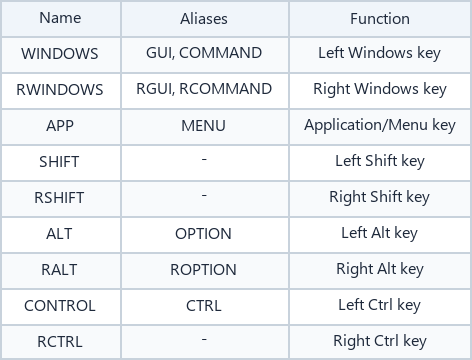
| Name | Alias | Function |
|---|---|---|
WINDOWS |
GUI, COMMAND | Left Windows key |
RWINDOWS |
RGUI, RCOMMAND | Right Windows key |
APP |
MENU | Application/Menu key |
SHIFT |
- | Left Shift key |
RSHIFT |
- | Right Shift key |
ALT |
OPTION | Left Alt key |
RALT |
ROPTION | Right Alt key |
CONTROL |
CTRL | Left Ctrl key |
RCTRL |
- | Right Ctrl key |
Arrow Keys
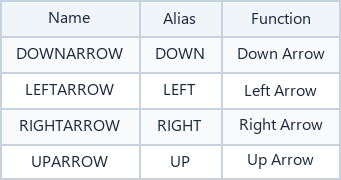
| Name | Alias | Function |
|---|---|---|
DOWNARROW |
DOWN | Down arrow |
LEFTARROW |
LEFT | Left arrow |
RIGHTARROW |
RIGHT | Right arrow |
UPARROW |
UP | Up arrow |
Function Keys
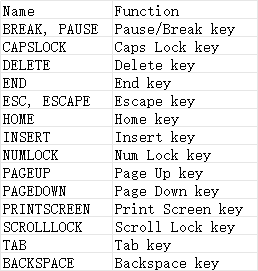
Supported function keys:
BREAK,PAUSE: Pause/Break keyCAPSLOCK: Caps Lock keyDELETE: Delete keyEND: End keyESC,ESCAPE: Escape keyHOME: Home keyINSERT: Insert keyNUMLOCK: Num Lock keyPAGEUP: Page Up keyPAGEDOWN: Page Down keyPRINTSCREEN: Print Screen keySCROLLLOCK: Scroll Lock keyTAB: Tab keyBACKSPACE: Backspace key
Alphabet Keys
Supported alphabet keys: A B C D E F G H I J K L M N O P Q R S T U V W X Y Z
Number Keys
Supported number keys: 0 1 2 3 4 5 6 7 8 9
Function Keys (F1-F24)
Supported function keys: F1 F2 F3 F4 F5 F6 F7 F8 F9 F10 F11 F12 F13 F14 F15 F16 F17 F18 F19 F20 F21 F22 F23 F24
Symbol Keys
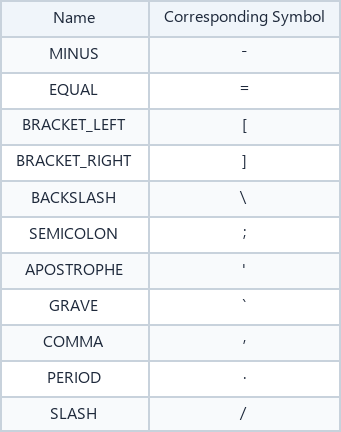
| Name | Corresponding Symbol |
|---|---|
MINUS |
- |
EQUAL |
= |
BRACKET_LEFT |
[ |
BRACKET_RIGHT |
] |
BACKSLASH |
\ |
SEMICOLON |
; |
APOSTROPHE |
' |
GRAVE |
` |
COMMA |
, |
PERIOD |
. |
SLASH |
/ |
Keypad Keys
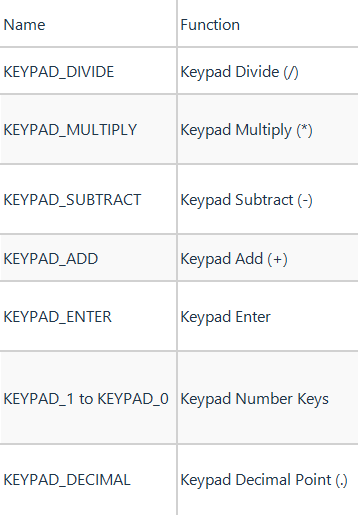
| Name | Function |
|---|---|
KEYPAD_DIVIDE |
Keypad divide (/) |
KEYPAD_MULTIPLY |
Keypad multiply (*) |
KEYPAD_SUBTRACT |
Keypad subtract (-) |
KEYPAD_ADD |
Keypad add (+) |
KEYPAD_ENTER |
Keypad Enter |
KEYPAD_1 to KEYPAD_0 |
Keypad number keys |
KEYPAD_DECIMAL |
Keypad decimal (.) |
Other Function Keys
Supported other function keys: EXECUTE HELP SELECT STOP AGAIN UNDO CUT COPY PASTE FIND MUTE VOLUME_UP VOLUME_DOWN
Example Script
REM For Windows system, open Notepad and type Hello World!. Need to switch to English input method.
GUI r
DELAY 1000
STRING notepad
ENTER
DELAY 1000
STRING Hello World!
Note
- The
Duckyfolder under the USB drive will be automatically created. - The list displays content in
txtandddformats inside theDuckyfolder on the USB drive. - Click on a script to send it. Currently, only USB sending is supported.