🔐 Managing FIDO
Create your first FIDO credential
Use MiixKey as a USB security key with WebAuthn.io on Windows 11.
English edition. Draft guide - we are still improving these instructions and welcome your feedback.
Before you begin
You will create a test passkey for webauthn.io, saved on MiixKey. The security key is the physical device; the passkey is the credential it holds. This test does not add a key to your Google, GitHub, or other accounts.
- Connect MiixKey with a USB data cable and unlock the device.
- Turn USB Mode off in MiixKey Settings. Keep the cable connected.
- Choose your card under Smart Card > Select Card. Use the same card for the later sign-in test.
- Close the MiixKey desktop app and other security-key management tools during this test.
- Use Chrome or Edge. GnuPG and YubiKey Manager are not needed for this registration.
Windows dialogs below are English illustrations translated from the supplied Chinese screenshots. Exact wording and layout may vary by Windows/browser version.
1. Open WebAuthn.io and start registration
Go to WebAuthn.io. Enter a test username, such as miixkey10. Remember this exact username for authentication.
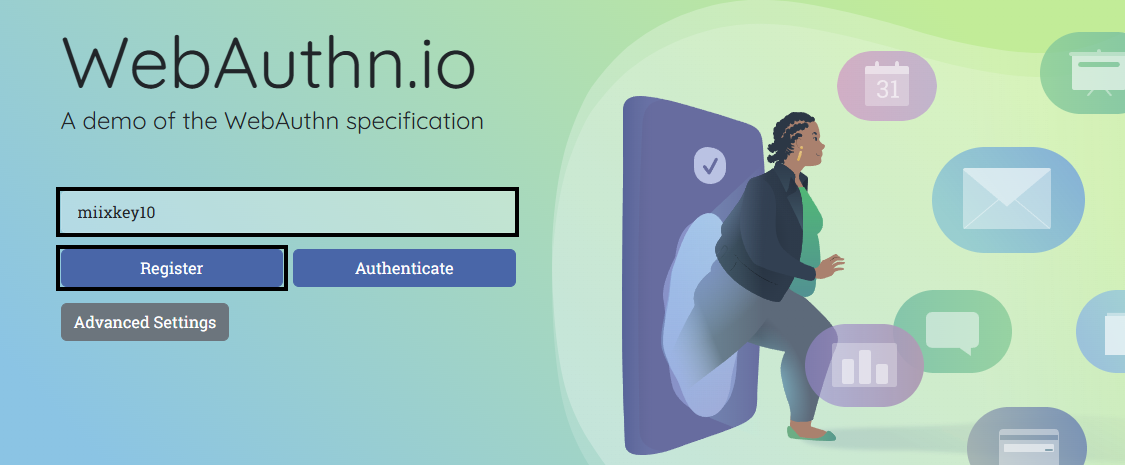
Recommended test options
Open Advanced Settings. Set Attachment to Cross-Platform and Discoverable Credential to Required, then click Register. These options request a hardware-key credential that can be listed on the key.
The advanced-options panel is not expanded in Figure 1.
2. Choose Security key
In Windows Security, choose Security key. If Windows first offers Windows Hello or another provider, use More choices or Use another device until the external security-key option appears.
Selecting a phone, Windows Hello, or a password manager will save the credential somewhere else. A successful website message alone does not identify which device was used.
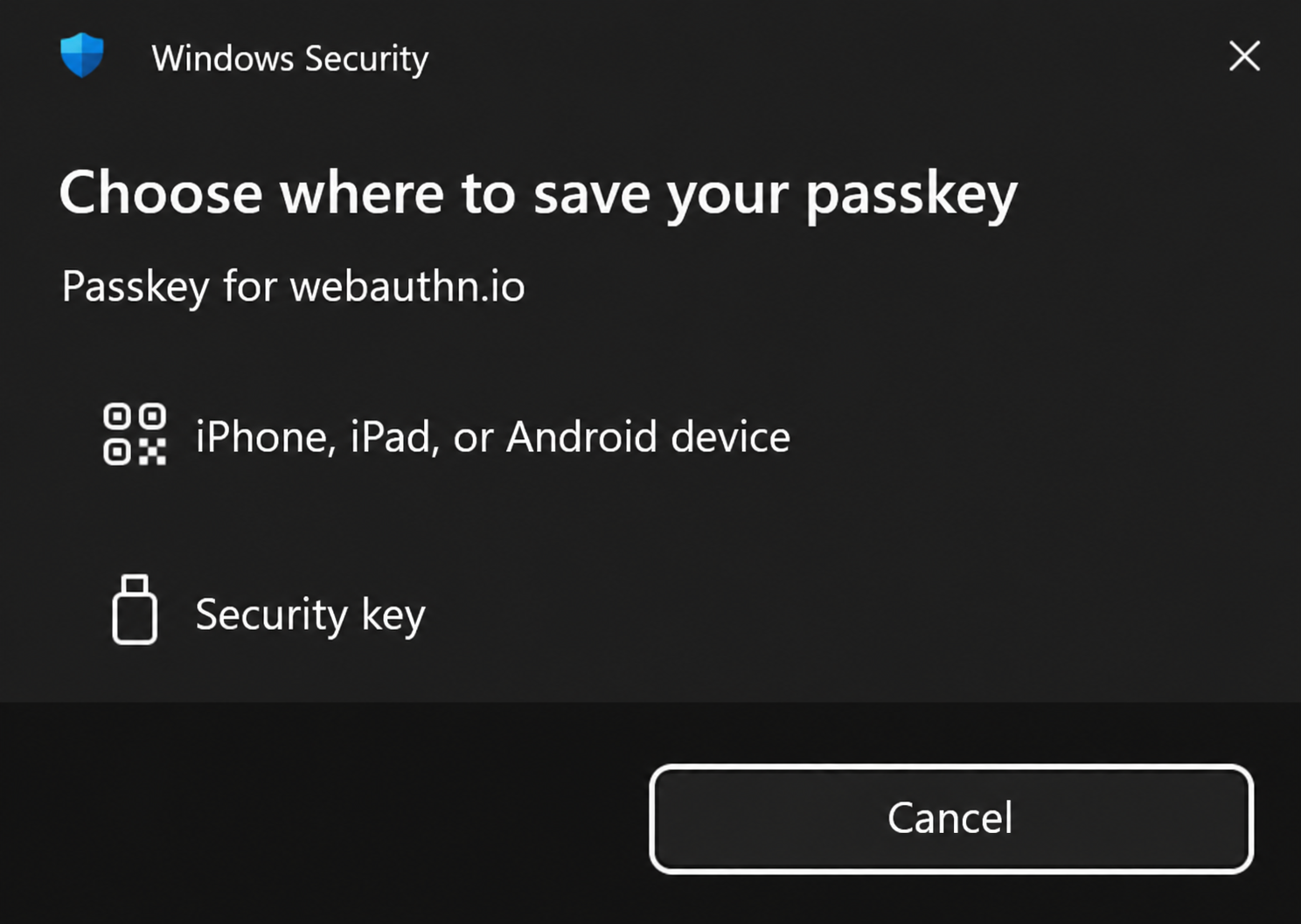
3. Set or enter the FIDO PIN
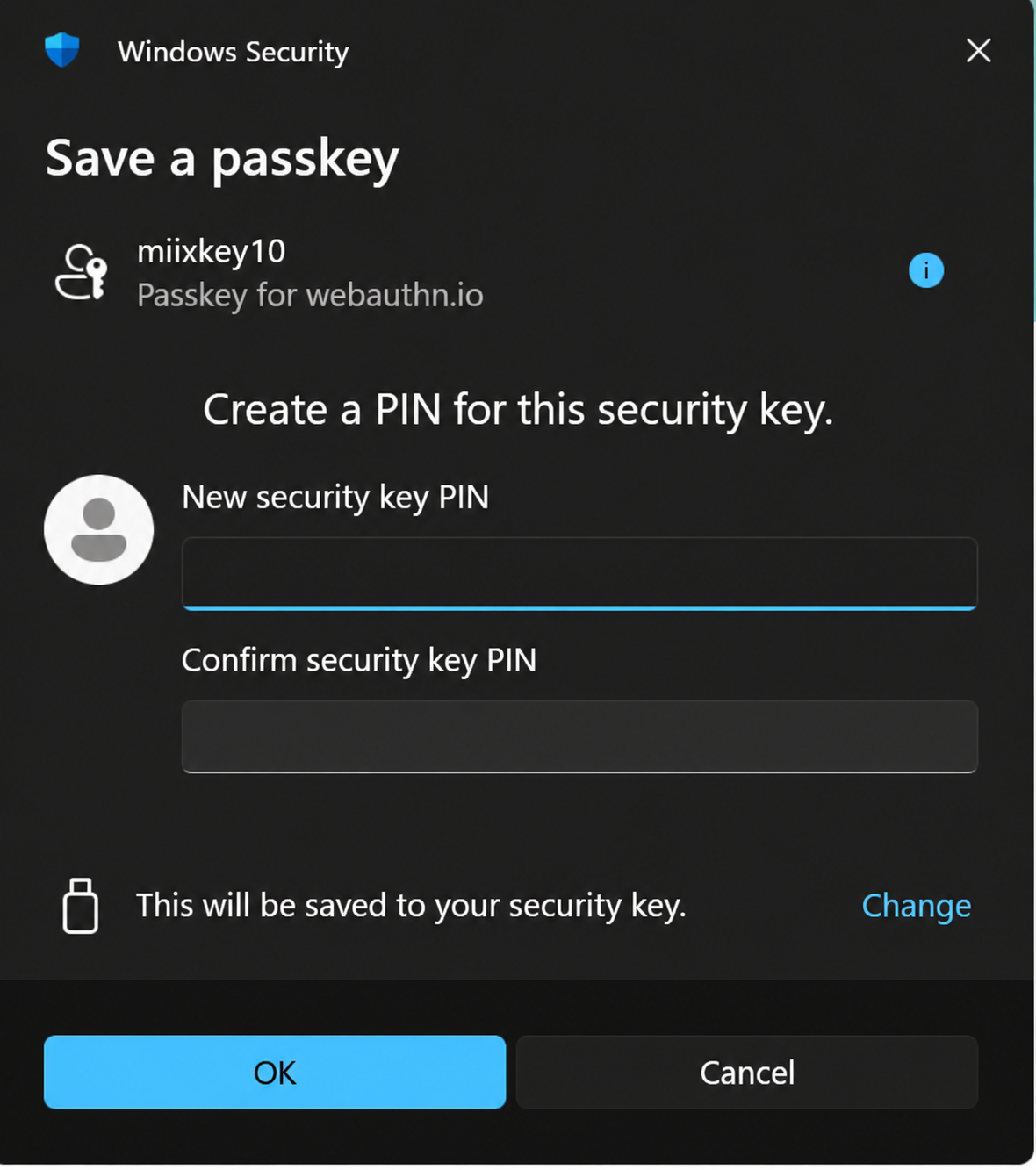
First-time setup
If Windows asks for New security key PIN, choose your own PIN, enter it again in Confirm security key PIN, then click OK. Follow the rules shown by Windows.
PIN already configured
Enter the known existing FIDO PIN when Windows requests it. Creating another credential does not require a new PIN.
The FIDO PIN is separate from the MiixKey unlock PIN and OpenPGP user/admin PINs. Do not assume they have the same value.
If the PIN is rejected, stop and check which PIN you entered. Repeated guesses can lock FIDO access. Do not reset or clear FIDO data just to resolve a browser timeout.
Keep your FIDO PIN securely; never send it with feedback.
4. Confirm the request on MiixKey
When Windows says Touch your security key, look at MiixKey. When its confirmation prompt appears, tap OK on the touchscreen to approve the request you started. Keep the device connected and finish before the browser times out.
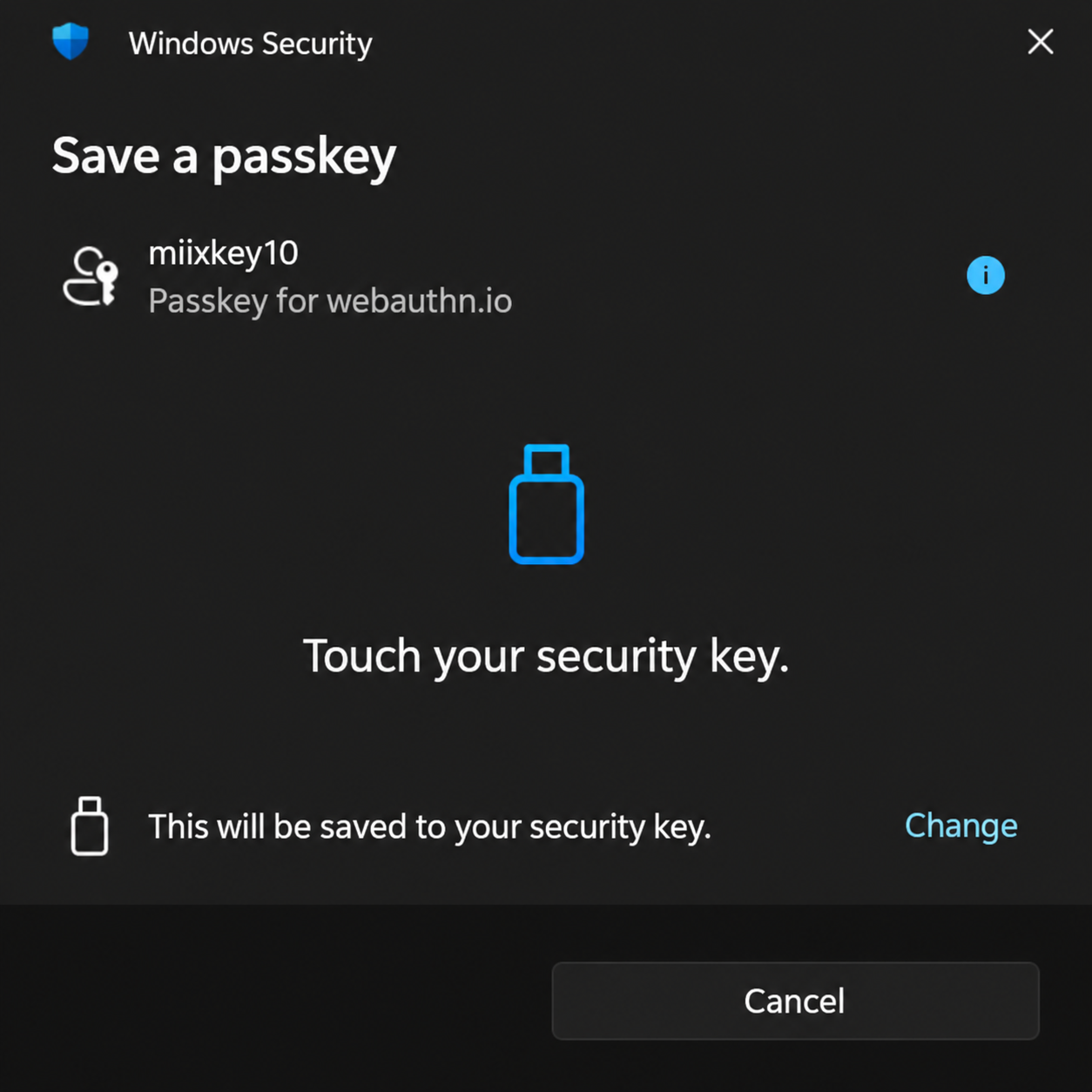
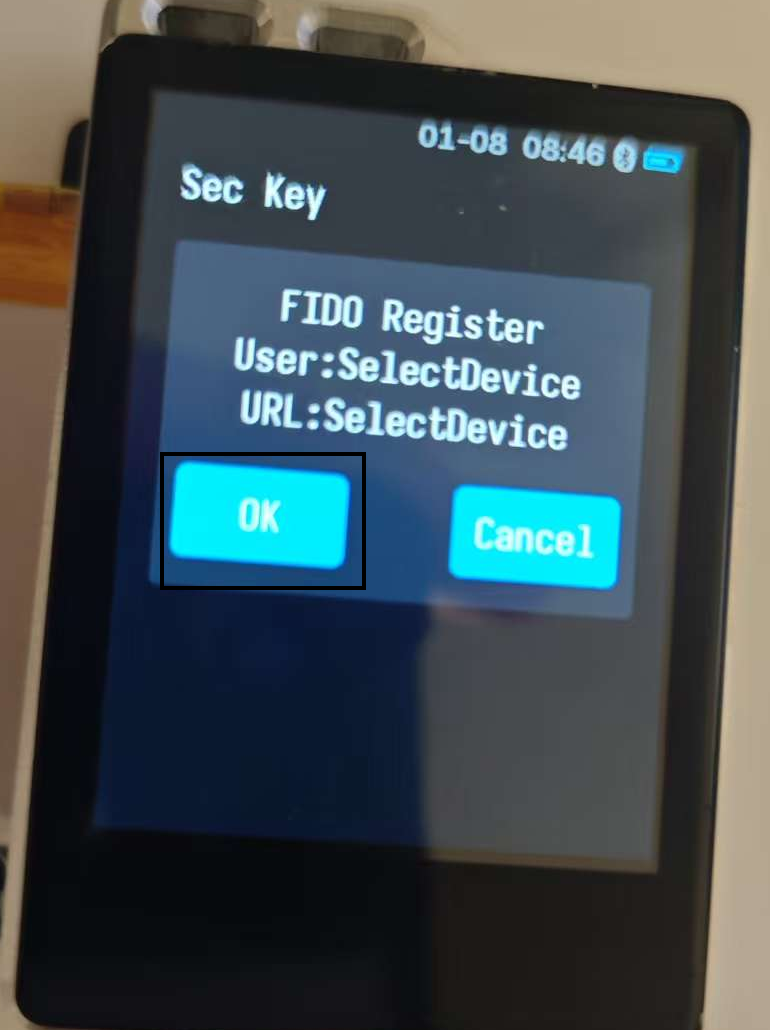
What the device photo shows
The example photo shows FIDO Register with User: SelectDevice and URL: SelectDevice. It illustrates the confirmation screen. The request fields may differ on your device; follow the prompts for the operation you started.
A prompt may also appear while Windows selects the key, and confirmation may be requested more than once. Follow the prompts in the order they appear. If Windows asks for confirmation but MiixKey stays silent, check the connection and USB Mode before starting a fresh attempt.
If you choose Cancel, the operation will stop. Return to WebAuthn.io and click Register again when you are ready.
5. Check the registration result
After registration finishes, WebAuthn.io displays Success! Now try to authenticate.... This confirms registration for this test account. Next, check that MiixKey can sign in.
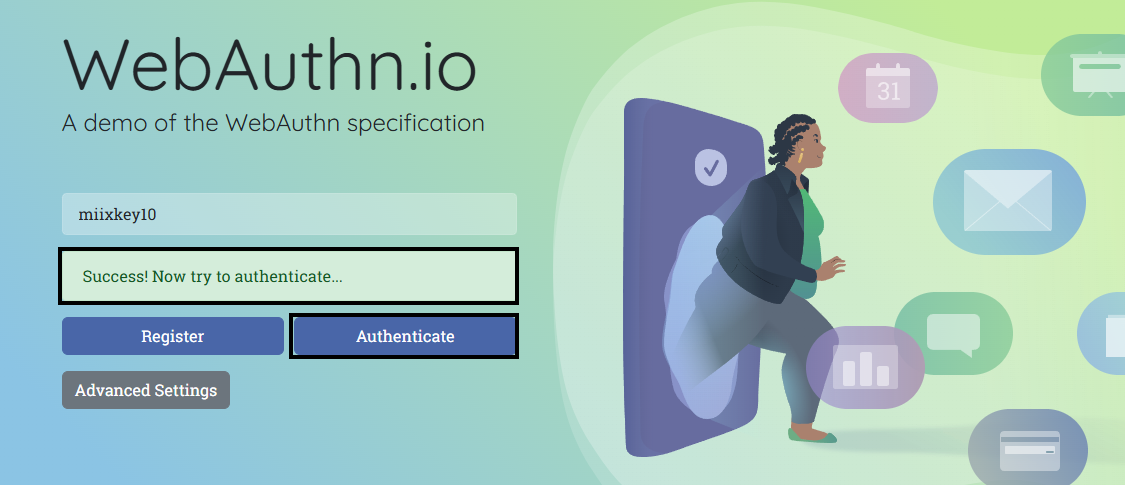
6. Test authentication
- Keep the same test username (miixkey10) in the field and click Authenticate.
- If Windows asks where to authenticate, choose the external Security key again.
- Enter the existing FIDO PIN if requested. Approve on MiixKey when prompted.
- Check that WebAuthn.io reports successful authentication. Registration success and authentication success are two separate results.
If the request times out or is not allowed
Check that MiixKey is unlocked, the original card is selected, USB Mode is off, the external key was chosen in Windows, and no management tool is using the device. Complete the device prompt promptly. The generic timeout/not-allowed error alone does not prove a bad PIN or damaged device.
Using MiixKey with a real account
Open the service's account security settings and add a passkey or security key there. Each service must register its own credential. A WebAuthn.io test credential does not enable sign-in to another service.
This guide is a draft. We are still improving it and welcome your feedback. Report the browser/Windows version, the step that failed, and the visible error. Never include your PIN.
References: WebAuthn.io · MiixKey Settings · Smart Card · Managing FIDO
📱 Using Authnkey on Android
Download
- GitHub: https://github.com/mimi89999/Authnkey
- Google Play: https://play.google.com/store/apps/details?id=com.token2.fidobridge
Usage
- Switch MiixKey to NFC+BT mode.
- Connect via NFC.
💻 Using Ykman to Manage FIDO Credentials
Prerequisites
- Download and install YubiKey Manager GUI — choose version 5.7.2 or earlier.
- Ensure MiixKey is connected to your computer.
- Open a terminal (PowerShell) with administrator privileges.
Steps
1. View Credentials List
Run the following command to view FIDO credentials on the device:
&"C:\Program Files\Yubico\YubiKey Manager\ykman.exe" -r MiixKey fido credentials listExample output:
Enter your PIN:
Credential ID  RP ID        Username  Display name
c2fd23b1...    webauthn.io  TT4       TT4
2. Delete a Credential
Use the following command to delete a specific credential (replace [Credential ID] with the actual credential ID):
&"C:\Program Files\Yubico\YubiKey Manager\ykman.exe" -r MiixKey fido credentials delete [Credential ID]Procedure:
- Enter your PIN.
- Confirm the deletion (type
y).
Example output:
Enter your PIN:
Delete webauthn.io TT4 TT4 (c2fd23b12aa967566b776ff5cb26d94c5eafbd46c1bf2148af315c6b32a04e11010274a6ea9213c99c2f74b22492b320cf40262a94c1a950a0397f29250b60841ef0f8ffffff)? [y/N]:
3. Verify Deletion
Run the list command again to confirm the credential has been deleted:
&"C:\Program Files\Yubico\YubiKey Manager\ykman.exe" -r MiixKey fido credentials list- Make sure to run PowerShell with administrator privileges.
- Deletion is irreversible — proceed with caution.