🔐 MiixKey Password Management
📌 Note
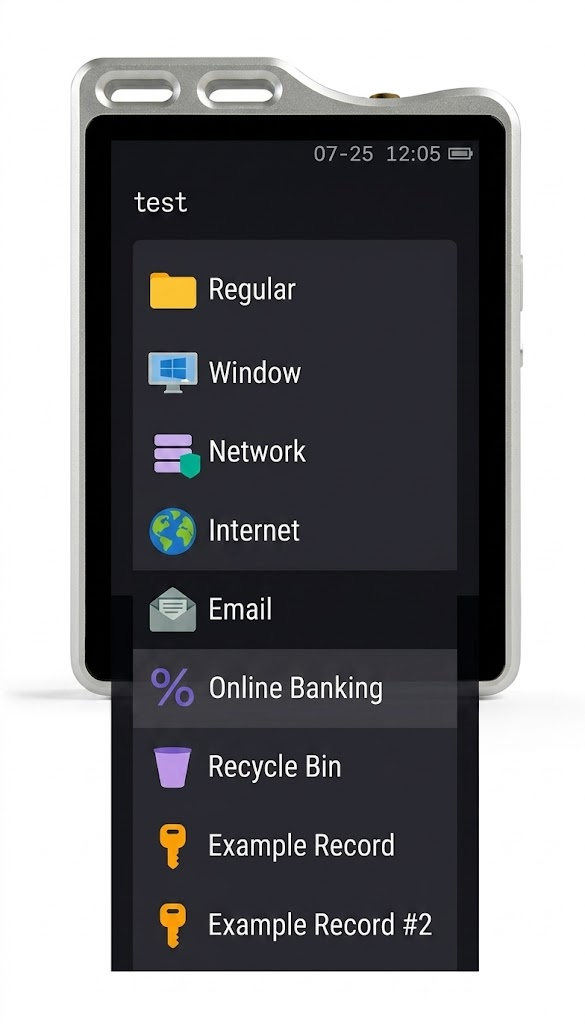
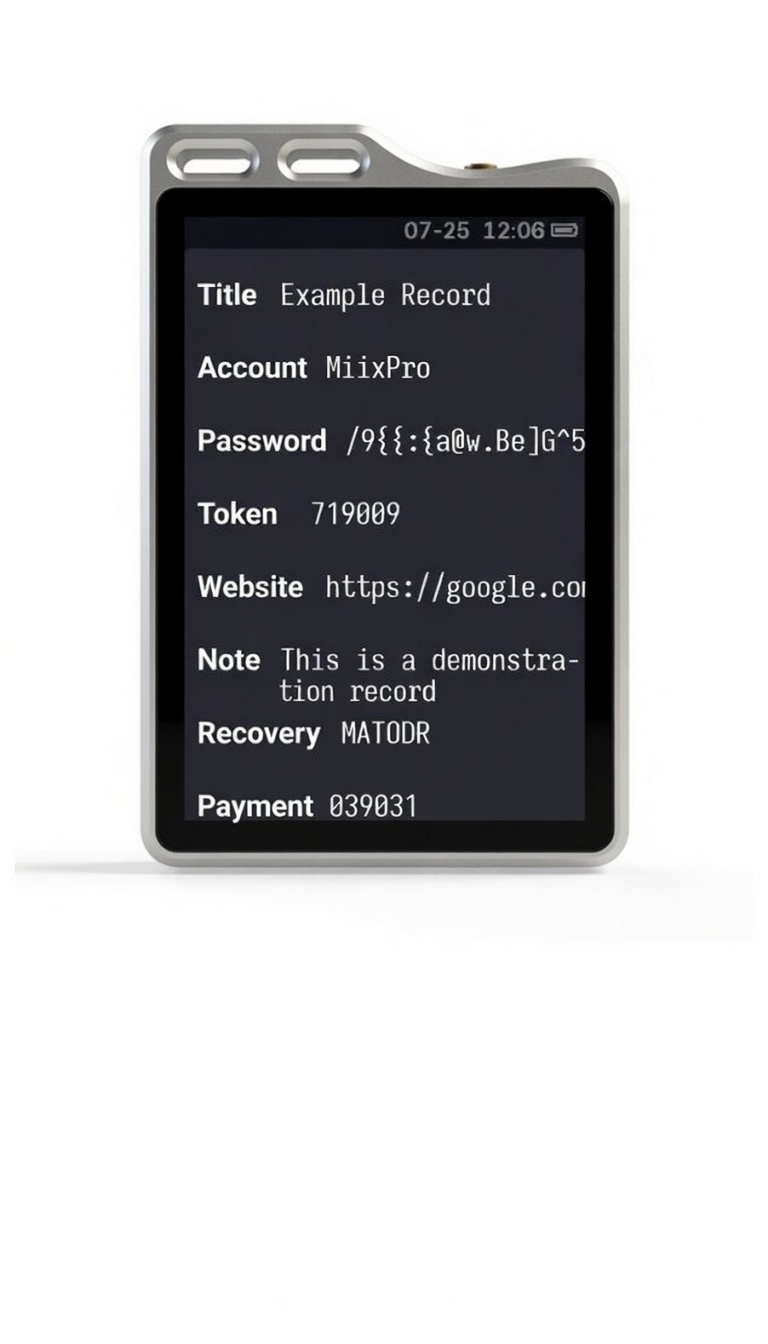
📱 MiixKey Menu Explanation
🆕 Creating a New Password Database
- Maximum of 1024 entries per directory.
- Maximum of 128 subdirectories per directory.
- Maximum of 32 values per entry (including custom fields).
- Maximum search results: 64 entries.
🖥️ KeePass Instructions
Installation and Configuration
- Download KeePass and install normally.
Create a New Password Database
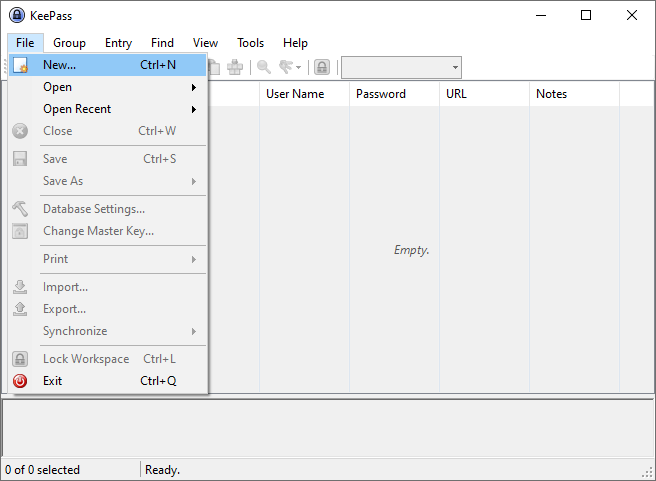
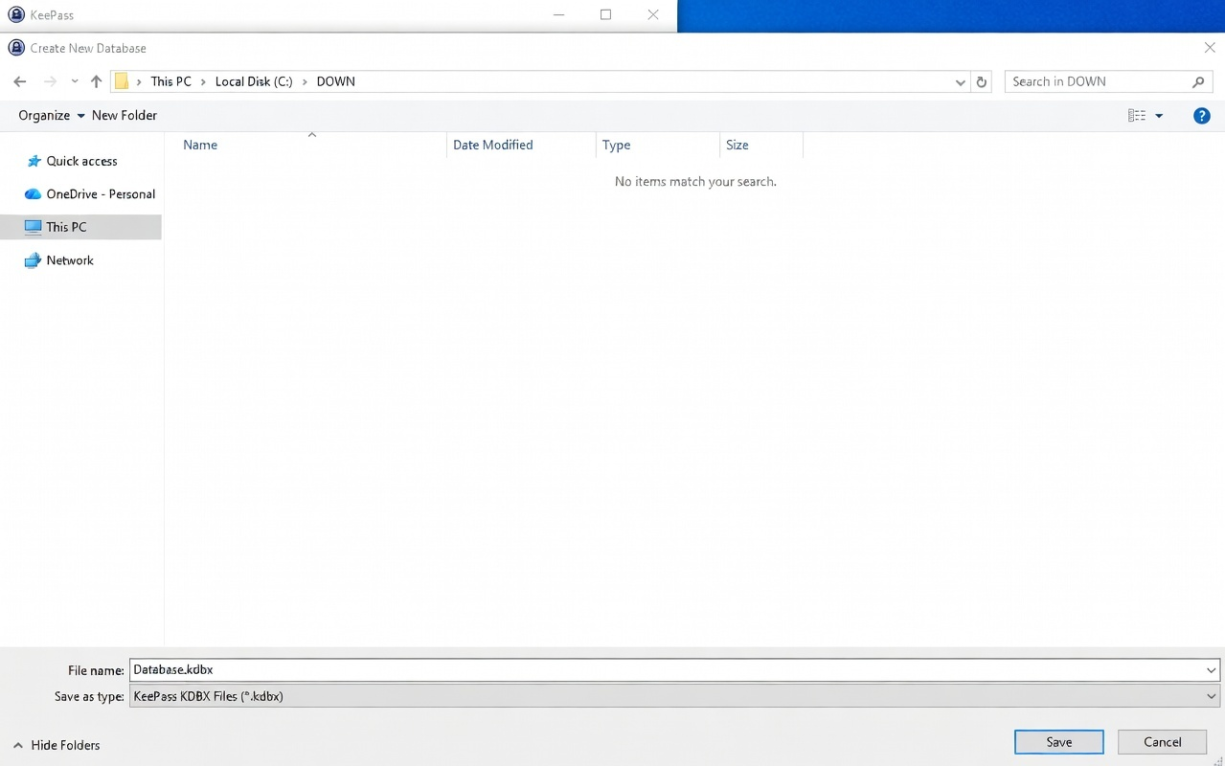
Choose the storage location and custom file name for the database.
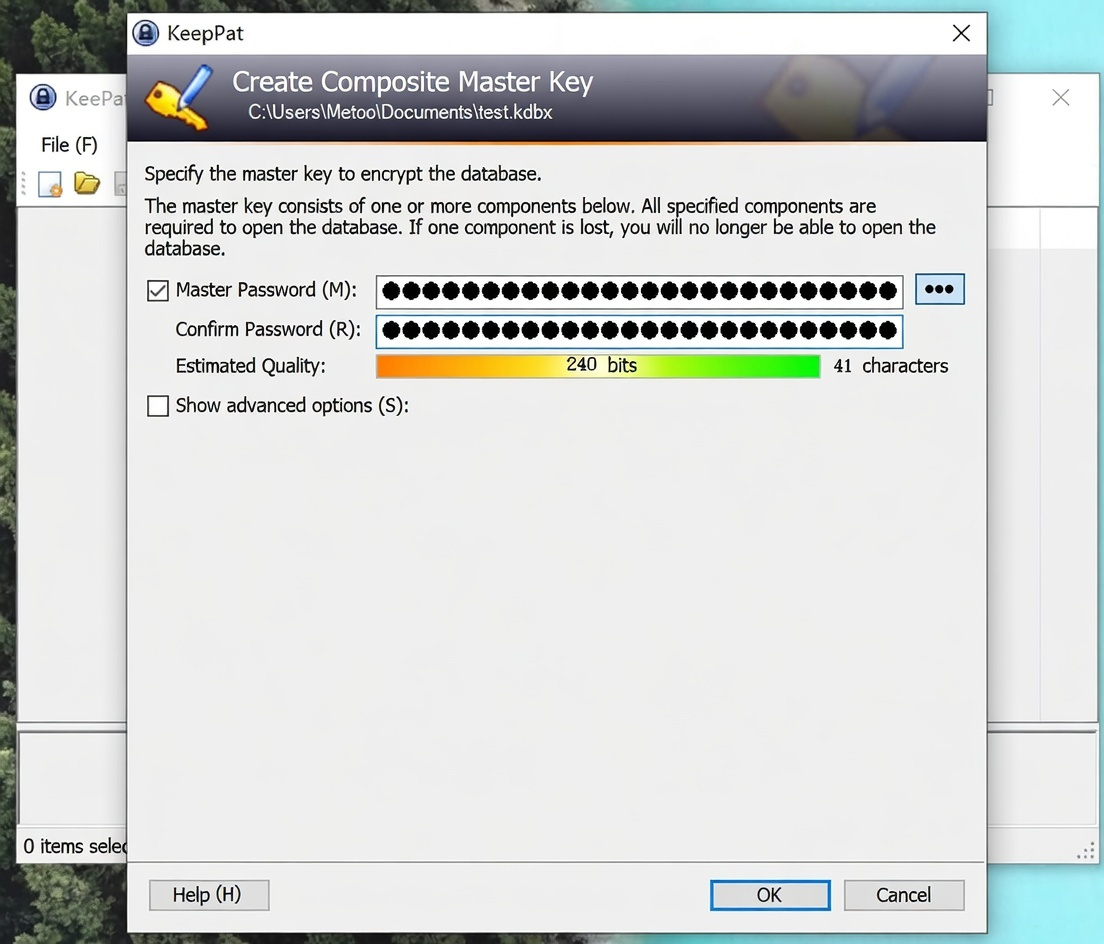
Set the password.
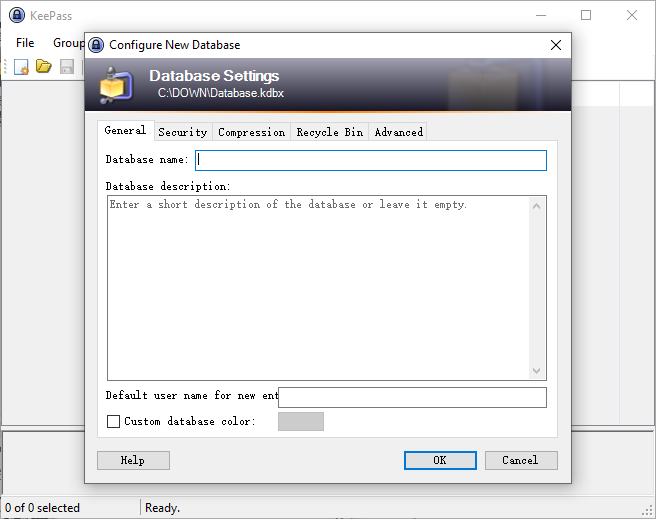
Fill in as you prefer.
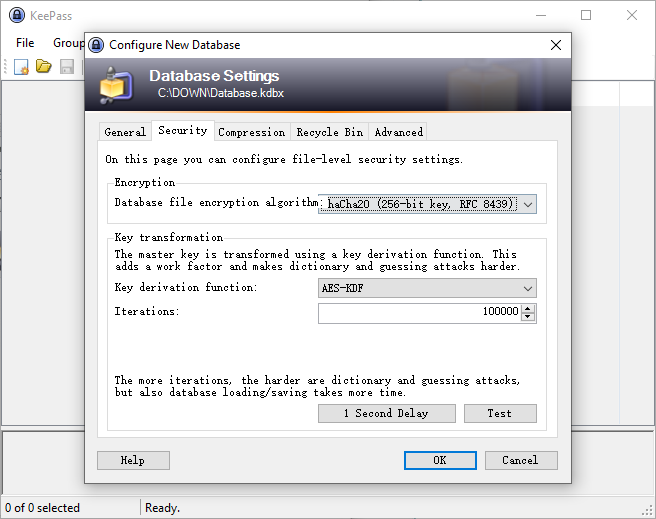
Security configuration. Strictly configure as shown below. The larger the iteration count, the longer it will take for MiixKey to decrypt for the first time.
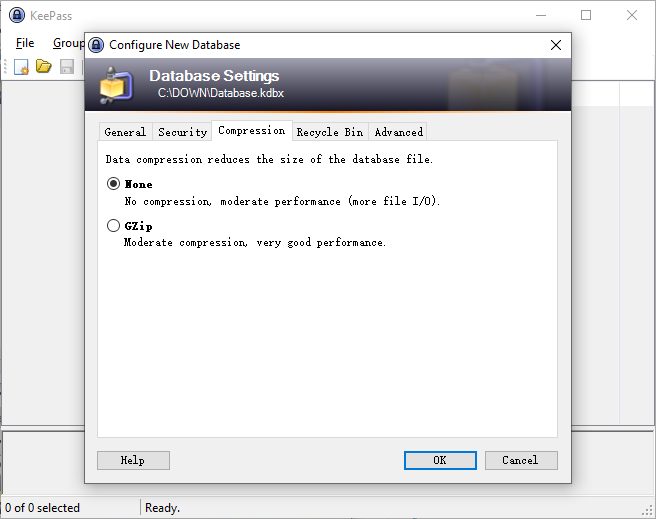
Disable compression.
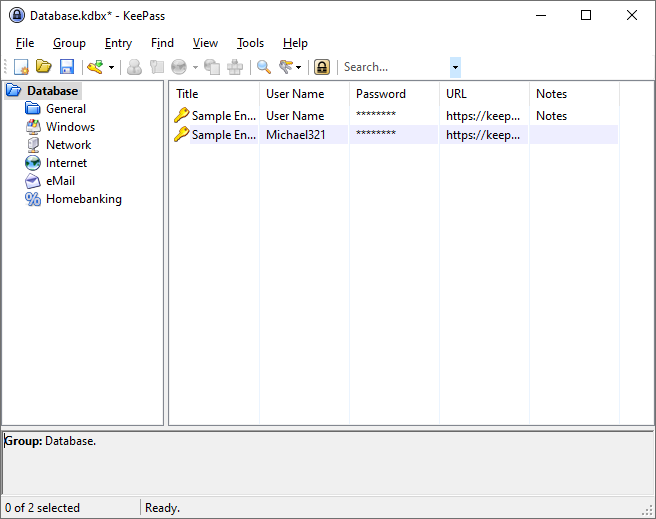
Then confirm. There will be some example entries inside; you can delete them yourself.
🖥️ KeePassXC Instructions
Installation and Configuration
- Download KeePassXC.
- Install normally.
- You may also need Microsoft Visual C++ Redistributable.
Create a New Password Database
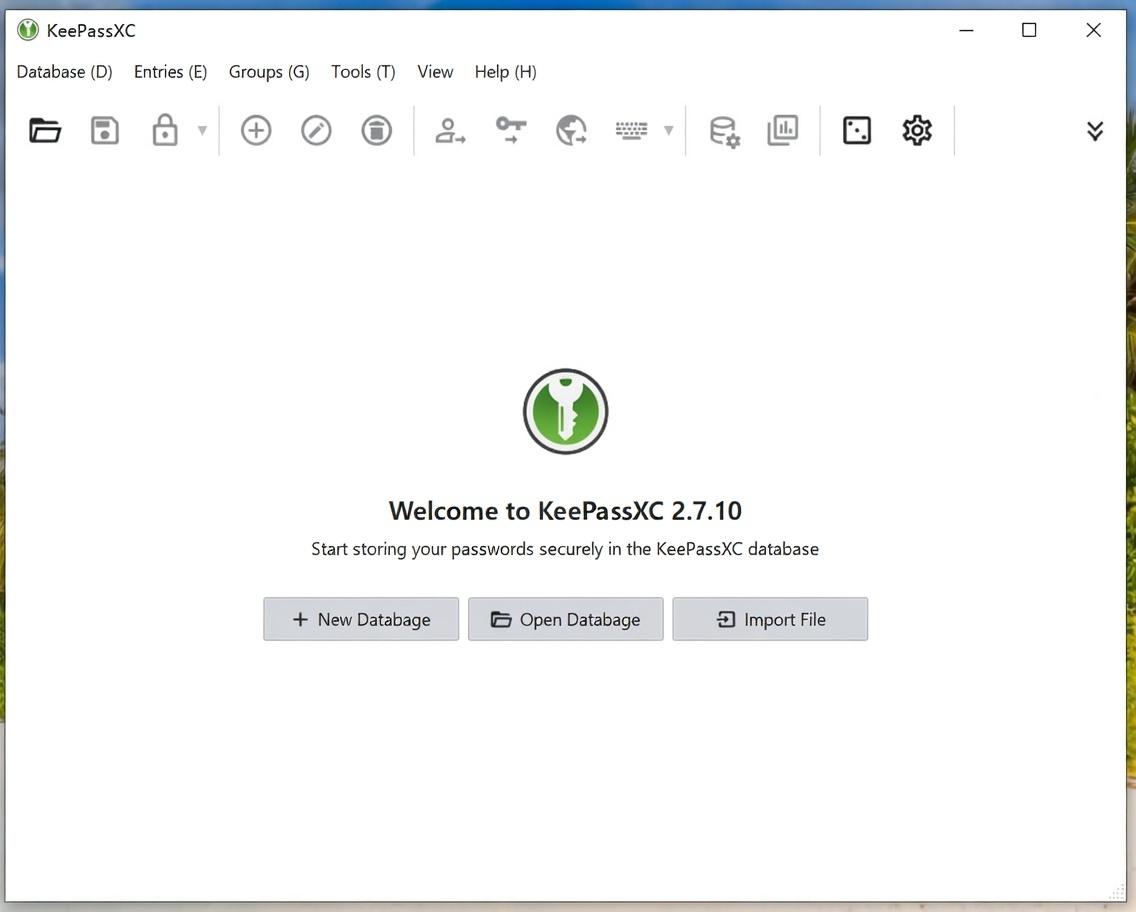
After running KeePassXC, click "New Database".
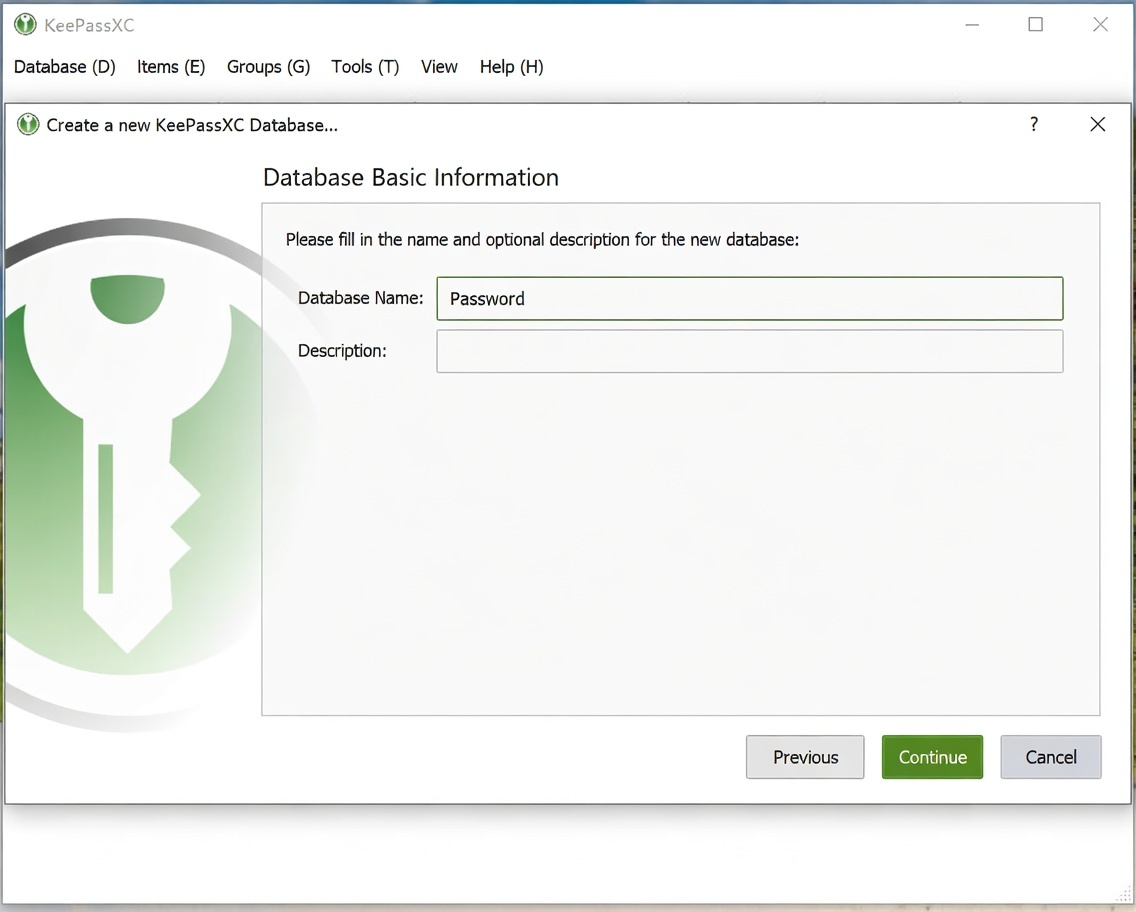
Add information as you prefer.
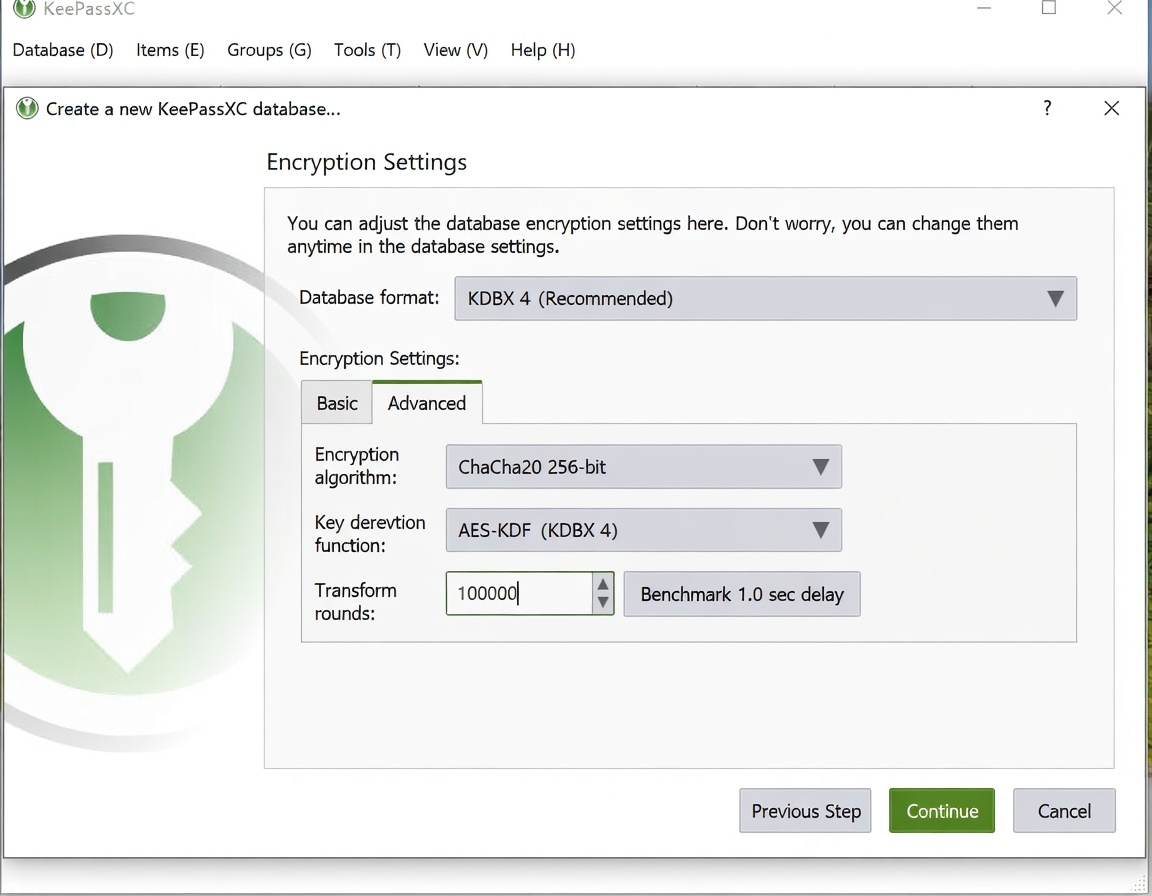
Encryption settings must be strictly configured as below. The larger the transformation iterations, the longer it will take for MiixKey to decrypt for the first time.
Set the password.
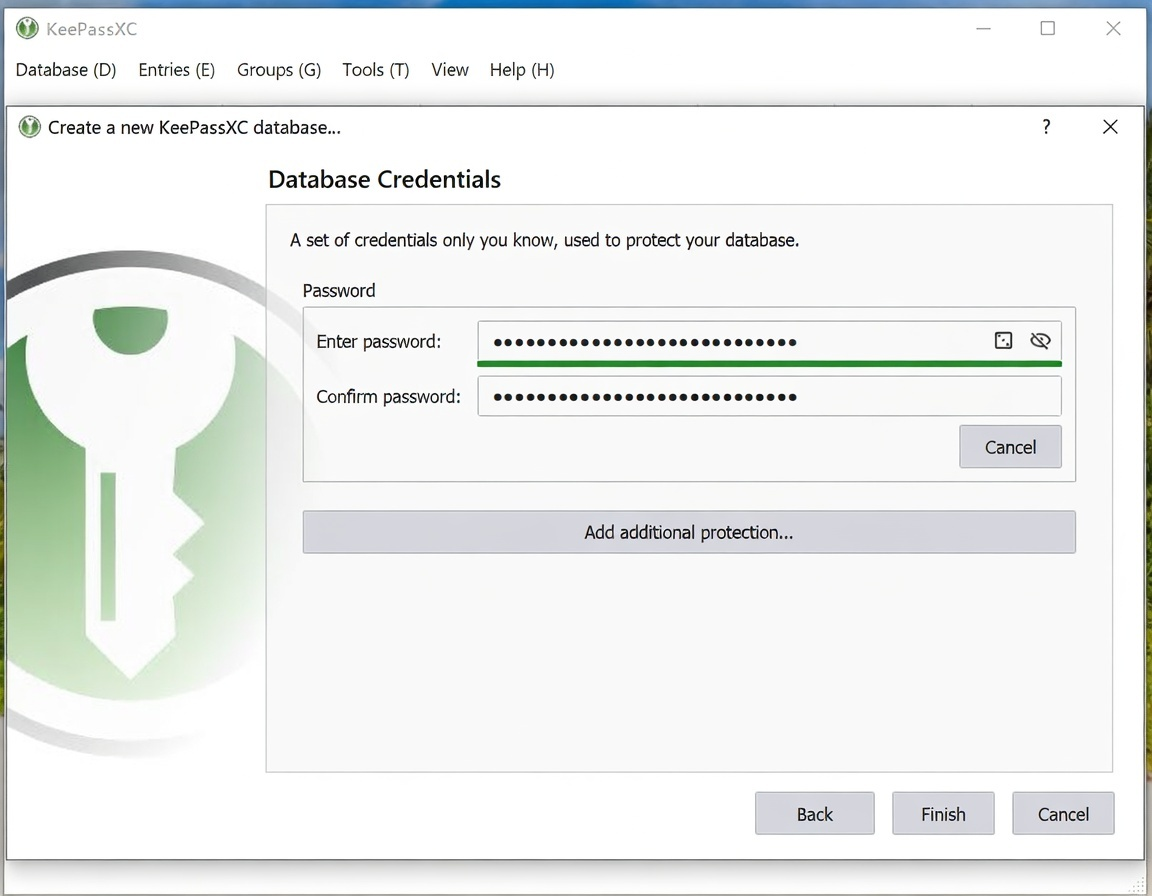
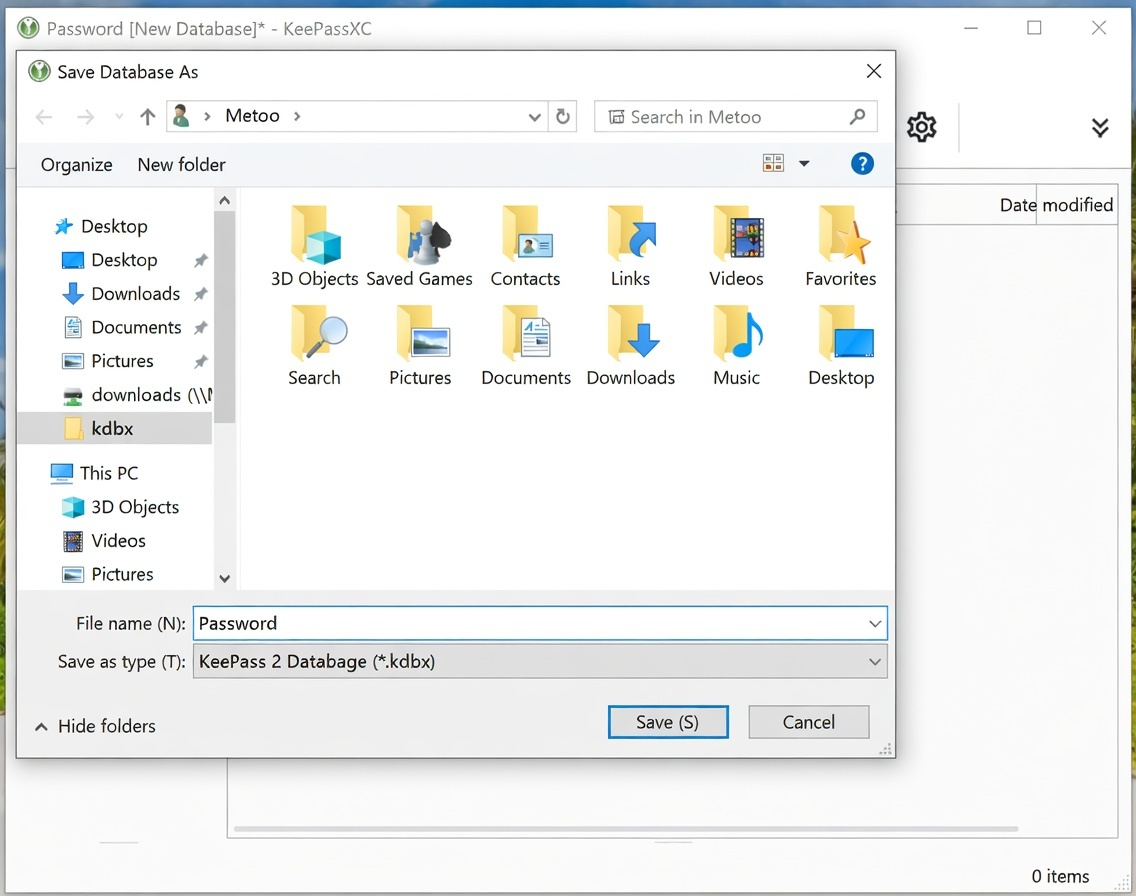
Save the database file.
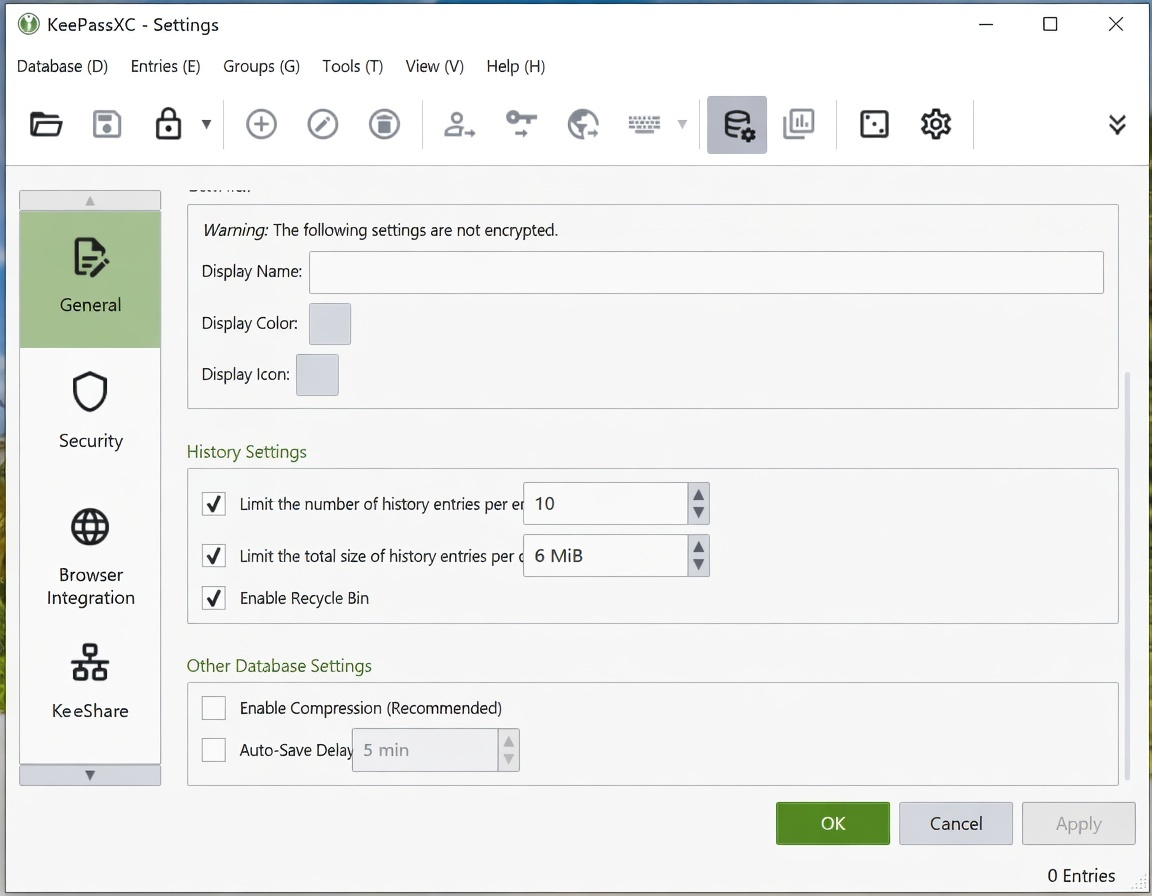
Disable database compression.
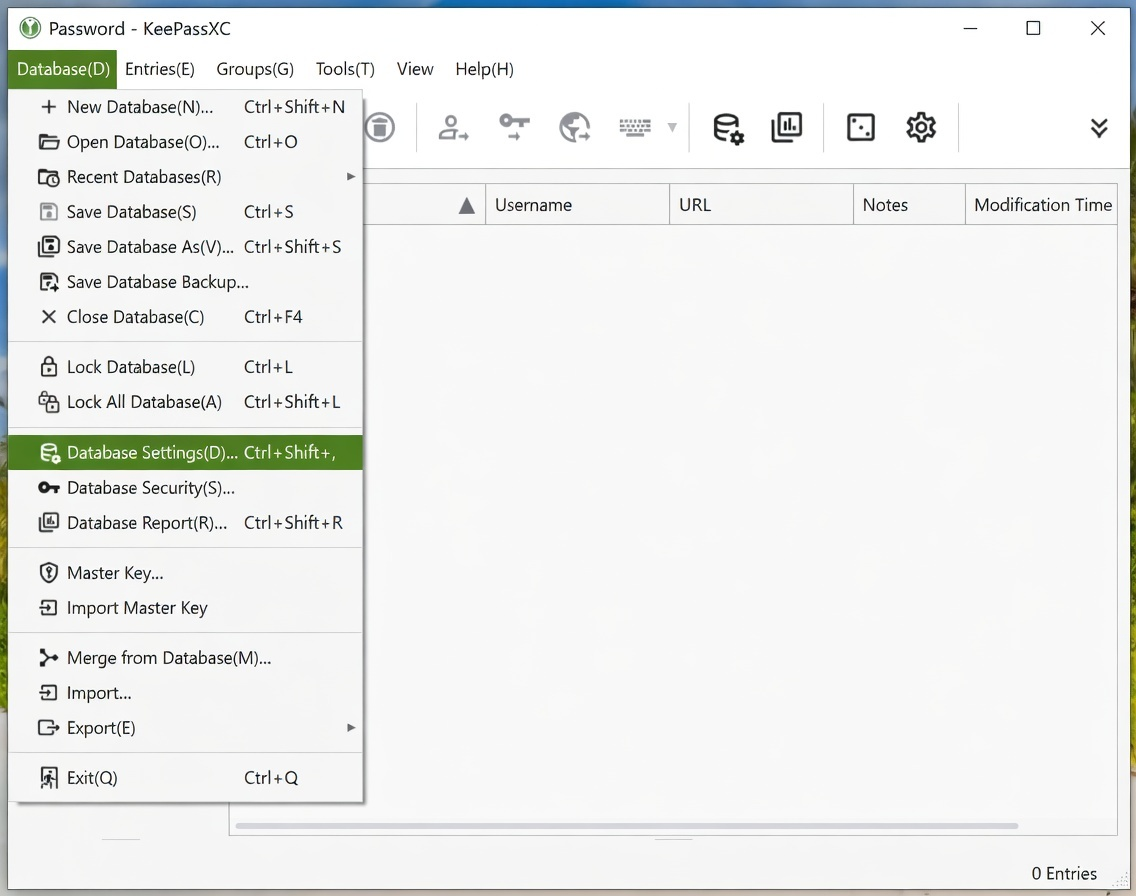
Other Recommended Settings (Optional)
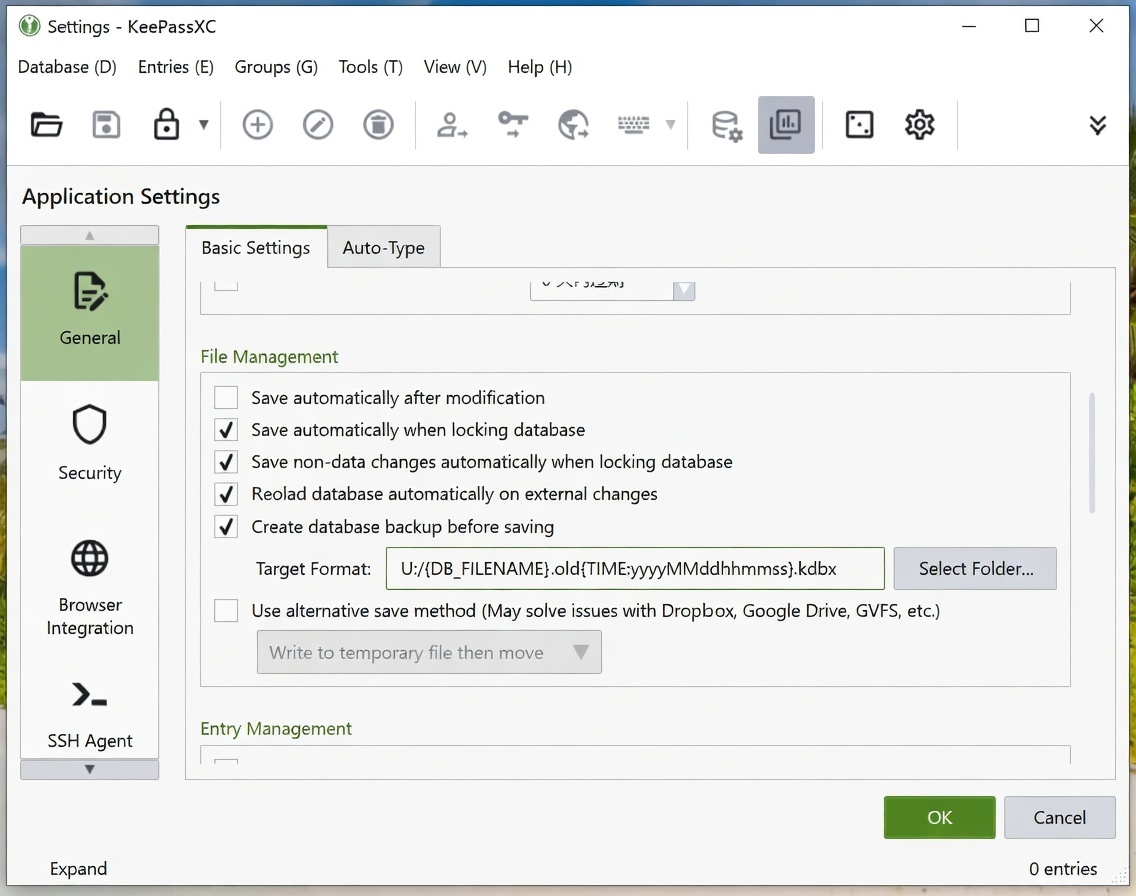
- Turn off Automatically save after modification.
- Enable Backup database file before saving and set the backup path. It is recommended to set the backup file name as
{DB_FILENAME}.old{TIME:yyyyMMddhhmmss}.kdbx.
📥 MiixKey Importing Password Database
Steps to Import Kdbx File
- In MiixKey settings, turn on USB Mode.
- Copy or move the Kdbx password database file to the MiixKey USB drive.
- Open the
MiixkeyConfig.txtfile on the MiixKey USB drive, enter the password for the Kdbx file in the corresponding location, and save the file. - Eject the MiixKey USB drive, then turn off USB Mode in MiixKey settings.
- Click Reload Database in the settings.
MiixKey takes approximately 3 seconds for 10,000 key iterations.
🛠️ Other
Importing Edge Browser Data to Kdbx
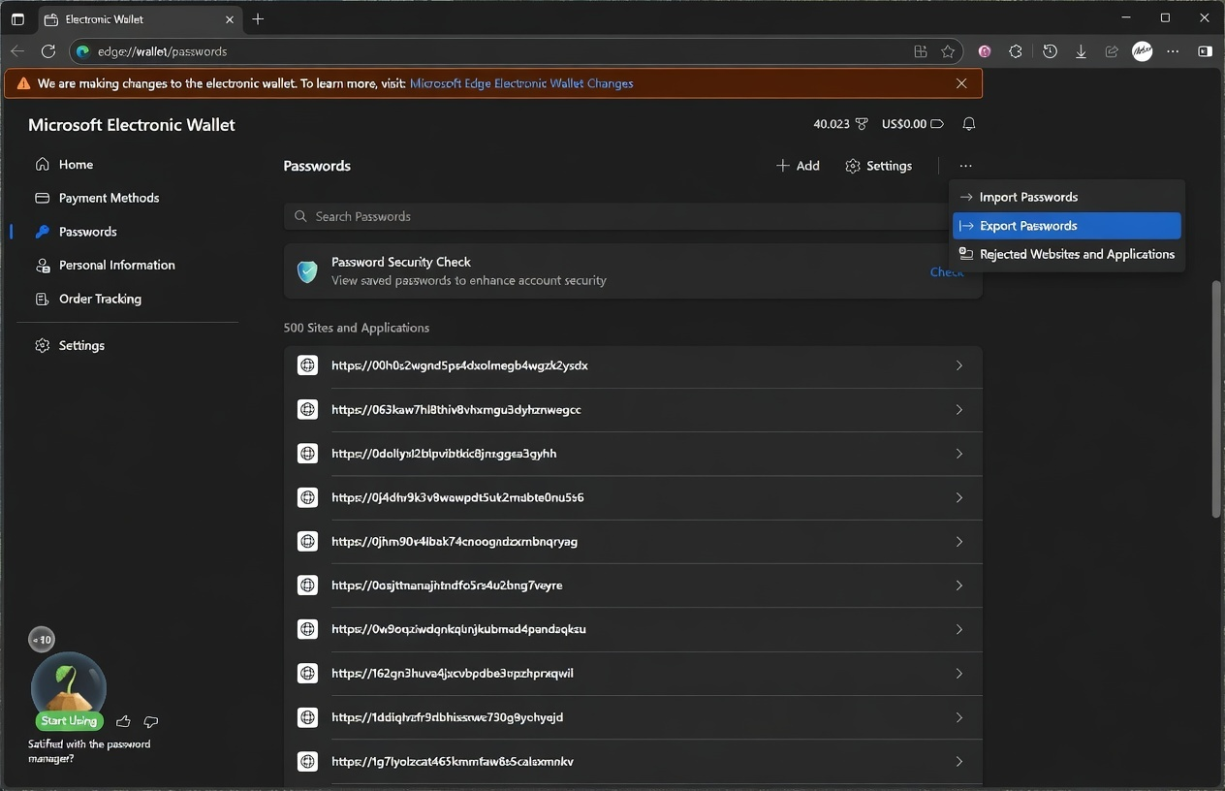
- Open the browser, enter
edge://wallet/passwordsin the address bar to open the password management page. You can also find it in the settings. - Export passwords as a
csvfile.
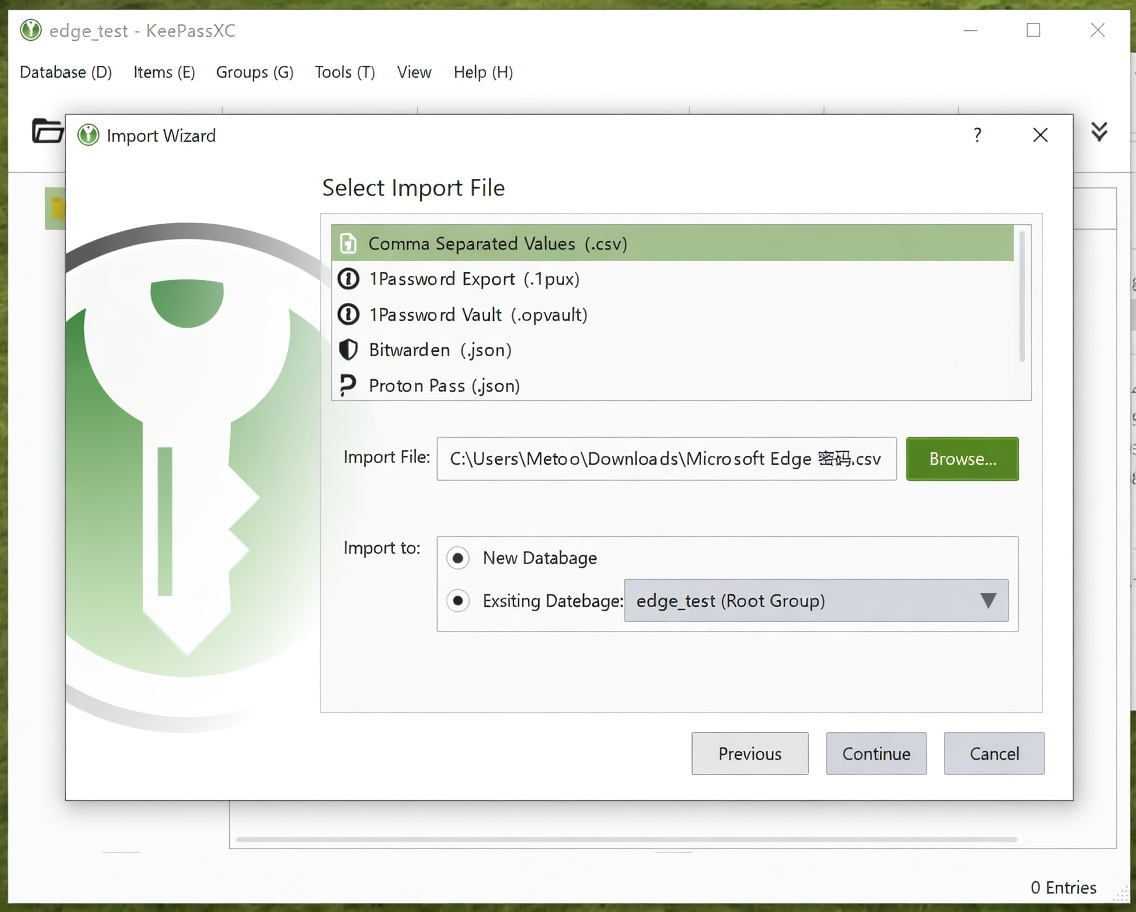
Open the newly created kdbx file and select Import.

Choose the import file and select the destination database.
Edit the data mapping. For Edge, it looks like the image below. Data exported from other password managers may differ.
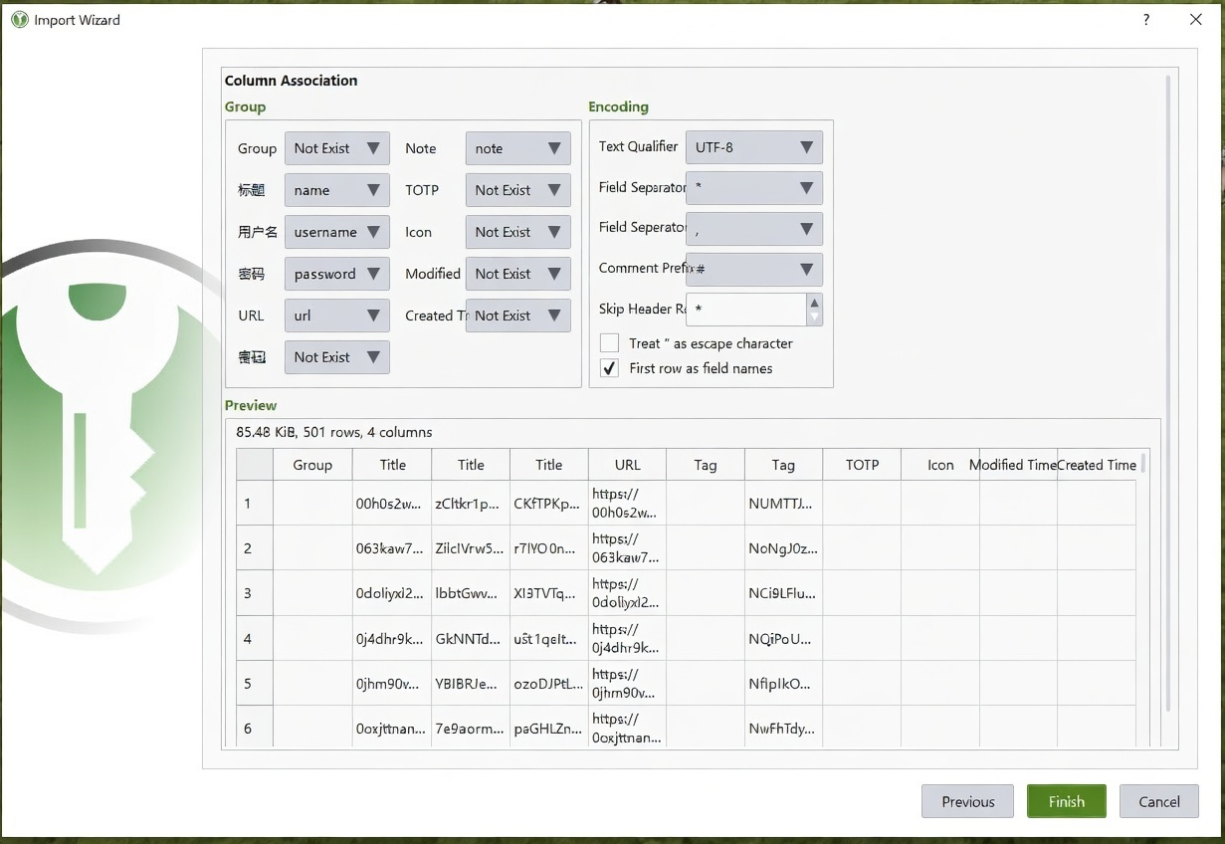
Import the data.
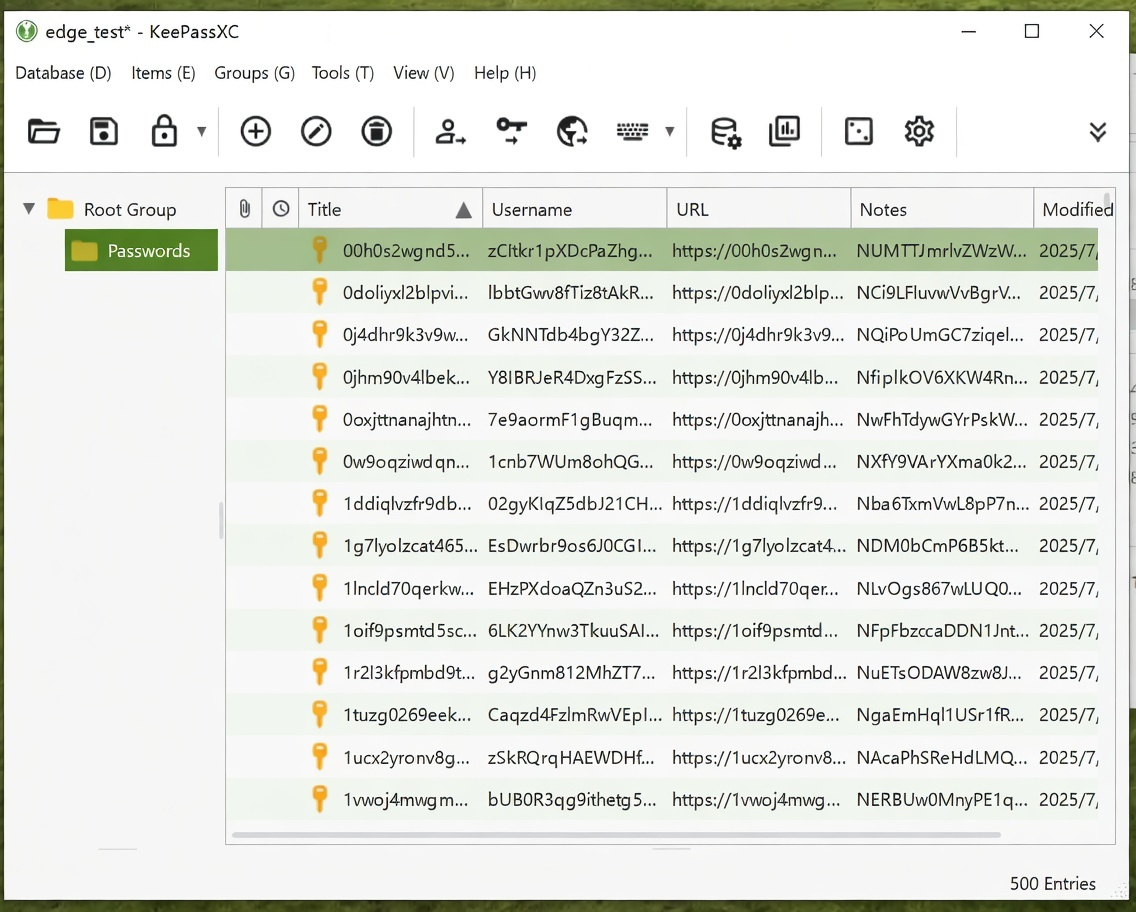
- Optimize and edit the grouping.
- Save and import into MiixKey.